
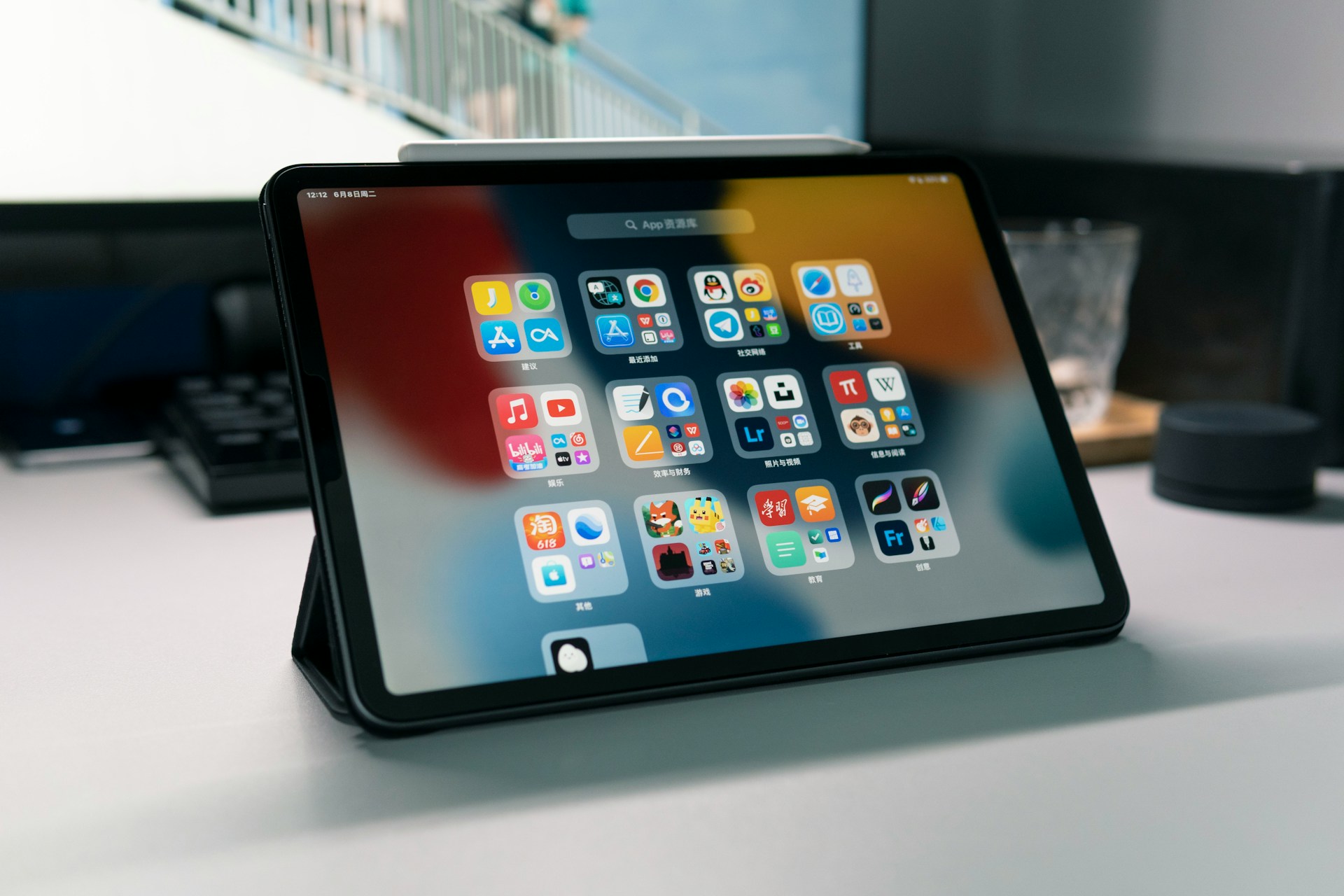
Apple’s latest iPad mini 6 absolutely dominates the small tablet market right now. It delivers top-tier performance, solid camera quality, and fantastic sound. Throw in Apple Pencil support and access to all the pro iPadOS apps you could possibly need, and you have a powerhouse sitting right in your hands.
The completely redesigned, lightweight chassis is practically perfect for one-handed use. Honestly, it is arguably the best premium tablet out there for reading, sketching, and taking notes. If you generally find the larger iPads too clunky and your smartphone just a bit too cramped, this device hits the sweet spot. Plus, the sheer versatility of its size makes it killer for single-purpose setups. Think about mounting it as a dedicated car GPS, using it as a central smart home hub, or relying on it as a live display for your drone. People might argue there is no real market for premium small tablets these days. Still, practically anyone can find a clever, convenient way to fit the new iPad mini into their daily routine.
Pricing and a Long-Overdue Redesign
Right now, you can grab the 2021 iPad mini in two storage tiers. The base 64GB Wi-Fi model runs for $499, while the upgraded 256GB version costs $649. Stepping up to the 5G cellular configurations naturally bumps those prices higher, and depending on your region, you might spot retailers bundling these tablets with a couple of promotional gifts.
What exactly do you get for your money? A massive, highly anticipated design overhaul. Just as rumors predicted months before the official launch, the tablet essentially looks like a shrunken-down 2020 iPad Air. We are talking about a modern aluminum body with flat edges, perfectly symmetrical bezels, and a highly requested USB-C port. Touch ID is now cleverly embedded directly into the power button. There is also a magnetic dock for the second-generation Apple Pencil, though you won’t find a smart keyboard connector on this model.
For ten years, earlier versions rocked the exact same tired design featuring chunky top and bottom bezels. This aesthetic refresh feels fantastic and looks incredibly modern. Because of the much smaller footprint, Apple had to rearrange a few things. The volume rockers now sit on the top edge of the device, or on the bottom left when you hold the tablet in landscape mode. That top edge barely has enough room to fit both the Apple Pencil and the buttons. You can pick up the mini 6 in four finishes: Pink, Purple, Starlight, and the undisputed crowd favorite, Space Gray.
Display Quirks and Jelly Scrolling
Out of the box, the 8.3-inch IPS screen looks incredibly sharp and packs punchy colors. It holds up decently outdoors, though its 500 nits of peak brightness falls noticeably short of the 2021 iPad Pro’s 600 nits and the iPhone 13’s 800 nits. You are definitely going to notice smudges and fingerprints when you step into direct sunlight. Actually, speaking of smudges, Apple claims this screen features a fingerprint-resistant oleophobic coating. In reality? It collects fingerprints like crazy. I was genuinely hoping Apple would improve this coating for the 2021 lineup, but no luck.
Then there is the elephant in the room. We noticed a weird visual glitch widely referred to as “jelly scrolling.” When you scroll rapidly through text in portrait mode, the display fails to update evenly. The image warps slightly, almost cartoonishly, acting as if one half of the screen is lagging behind the other. After checking various other modern iPads, it seems this specific quirk is entirely exclusive to the iPad mini 6. Honestly, plenty of users might never even notice it during normal web browsing. Apple eventually stated this is just normal behavior for LCD screens and has no plans to roll out a software fix. While they aren’t technically wrong about how LCD panels operate, the effect is rarely this obvious on premium devices.
Minor oddities aside, the screen size remains flawless for everyday tasks. Clocking in at an incredibly comfortable weight of just 0.65 pounds, it is a phenomenal device for casually consuming content.
Locked Out? How to Rescue a Disabled Tablet
Even the sleekest new gadget can turn into a shiny paperweight if you forget your passcode. Whether you just picked up the mini 6 or you are rocking an older model, locking yourself out of a disabled iPad is incredibly frustrating. Luckily, there are two reliable methods to bypass the lock screen using a computer.
If you have previously synced your tablet with iTunes, you can actually unlock the device without losing a single file. First, plug your iPad into your Mac or PC using a cable and fire up iTunes. Let the device sync completely. Once that background synchronization finishes, immediately create a fresh backup of your data. Next, hit the “Restore iPad” button. This kicks off a hard reset, effectively wiping all current data from the hardware. Why go through this drastic step? Wiping the system is the only way to delete the forgotten passcode lock, allowing you to create a brand new one during the setup process. By restoring from the backup you just created, you ensure absolutely no files, apps, or photos are permanently lost.
The Hard Reset Route Without a Backup
What if you have never plugged your iPad into a computer before? Well, you are left with only one viable way to rescue your tablet: forcing the device into recovery mode. Be warned, however. Because you do not have a backup on file, you will permanently lose all the data and custom settings stored on the device.
To tackle this process, launch iTunes on your computer and keep a connection cable handy. Turn your iPad completely off. If your tablet lacks a physical home button—just like the new mini 6—press and hold one of the volume buttons alongside the top power button until the power-off slider appears on the screen. For older models that still feature a home button, simply press and hold the power button to trigger that same slider.
Now, boot the iPad back up into recovery. Press and hold the top power button, or the home button on older iterations. While physically holding that specific button down, connect the tablet to your computer using the cable. Keep your finger glued to the button until the recovery mode screen finally pops up on the display. If you accidentally bring up the regular passcode prompt, you messed up the timing and have to power down to try the sequence again.
Once successful, locate your iPad in the iTunes interface. A dialog window will pop up automatically. Click on “Restore” and let the software do its thing. The entire wiping process might take several minutes to finish up. Afterward, disconnect your iPad and set it up from scratch like a brand-new device. As a final tip, if neither of these computer-based methods does the trick, your best bet is to reach out directly to Apple Support for some professional troubleshooting.